Portable 1080P LED Projector: WiFi, Bluetooth & Android
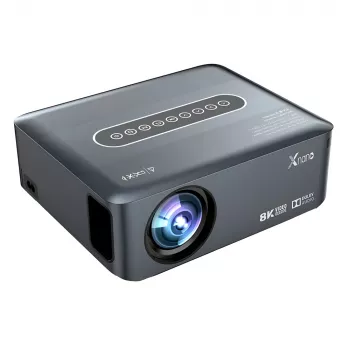
4K 1080P Portable LED Projector with WiFi, Bluetooth & Android OS: A Practical Guide for Home and Travel
A compact projector can turn a blank wall into a big-screen setup for movies, gaming, presentations, or backyard nights. This guide breaks down what to expect from a portable LED projector with WiFi, Bluetooth, and Android OS, how to set it up smoothly, and what to check before buying—so the first night looks and sounds the way you hoped.
Quick Snapshot: What This Projector Is Built For
- Portable size for flexible placement in bedrooms, living rooms, dorms, and travel setups
- Built-in wireless options to reduce cable clutter (WiFi for streaming/casting, Bluetooth for audio)
- Android OS for running apps directly on the projector without an external streaming stick
- LED light source designed for efficient, long-running viewing sessions
- Best suited for dim to dark rooms for richer contrast and more vibrant perceived color
If you’re trying to decide where it will work best, start by estimating your screen size based on the throw distance. Projector Central’s distance and screen-size guidance can help you map a realistic setup before you rearrange furniture: Projector Central — Projection Calculator.
Key Features That Matter Day to Day
- Resolution support: 1080P is the practical baseline for sharp text, subtitles, and game UI; 4K support is useful for compatibility with higher-resolution sources (actual on-screen sharpness depends on the projector’s native resolution).
- WiFi: Enables screen mirroring and/or streaming depending on installed apps and network stability.
- Bluetooth: Pairs with speakers or headphones for better sound than built-in speakers can deliver.
- Android OS: Access to streaming, media player, and utility apps; app availability can vary by region and store support.
- Port selection: HDMI/USB (common on this class) helps connect consoles, laptops, or local media drives when wireless isn’t ideal.
Feature-to-Use Case Match
| Feature | Best for | Why it helps |
|---|---|---|
| Android OS | Streaming without extra devices | Runs apps directly on the projector for a simpler setup |
| WiFi | Casting and wireless playback | Fewer cables and quick sharing from phones or laptops |
| Bluetooth | Better audio | Pairs with external speakers/headphones for clearer dialog and stronger bass |
| 1080P playback | Movies, sports, presentations | Cleaner text and less jagged edges than lower resolutions |
| Portable LED design | Travel, small rooms, occasional setups | Easy to move and store; efficient light source |
For a quick refresher on the platform side, Android’s official overview explains the basics of app ecosystems and supported experiences: Android — Android TV information. For wireless audio behavior and device pairing expectations, Bluetooth’s official resource is a solid reference: Bluetooth SIG — About Bluetooth technology.
Setup Checklist for a Clean First Night
- Placement: Align the lens square to the wall/screen to minimize keystone correction and preserve sharpness.
- Distance planning: Start mid-range, then adjust size by moving the projector rather than relying only on digital zoom (digital zoom can soften the image).
- Focus: Focus on small on-screen text (menu items or subtitles) to confirm edge-to-edge clarity.
- Audio: If dialog sounds thin, pair a Bluetooth speaker positioned near viewers rather than near the projector.
- Power: Use a stable outlet; avoid low-quality extension cords that can introduce flicker or dropouts.
A simple routine that helps: set the projector first, get the image square with minimal correction, then fine-focus using subtitles or a settings menu. Only after the picture is locked in should you worry about app logins and audio pairing.
Getting the Best Picture in Real Rooms
- Lighting: Dim the room and avoid direct light on the projection surface for noticeably deeper blacks.
- Surface: A plain matte white wall can work; a dedicated screen improves uniformity and perceived contrast.
- Color and contrast: Start with a neutral picture mode; reduce sharpness if halos appear around text.
- Motion content: For sports and action, check settings for motion enhancement if available, but avoid over-smoothing if it creates artifacts.
- Noise and heat: Keep vents unobstructed and allow clearance around the projector for stable performance.
If the image looks “washed,” it’s usually the room, not the content: brighter ambient light reduces perceived contrast quickly. Even a small change—closing blinds, turning off a nearby lamp, or aiming the projection away from a light source—can make the picture feel more cinematic.
Streaming, Mirroring, and App Considerations
- App access: Android OS may use a specific app store; some streaming services require certified devices for full-resolution playback.
- Mirroring: Phone-to-projector casting can be sensitive to WiFi congestion; a 5 GHz network (when supported) is often more stable.
- Offline viewing: USB playback is useful for travel or weak internet connections.
- Best reliability: HDMI from a laptop/console is often the most consistent option for gaming or business decks.
- Privacy and updates: Install only needed apps and check for firmware updates to improve stability and compatibility.
Who It’s Best For (and When to Choose Another Option)
Product Options Available Now
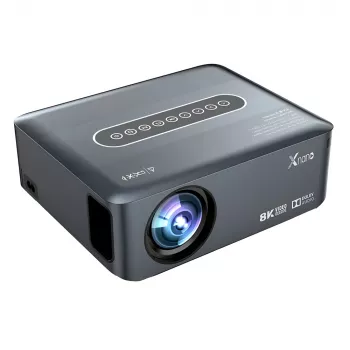
- 4K 1080P Portable LED Projector with WiFi, Bluetooth & Android OS
- Adidas Men’s White Sneakers
- Birkenstock Women’s White Leather Slippers
At-a-Glance Purchase Details
| Item | Price | Availability |
|---|---|---|
| 4K 1080P Portable LED Projector with WiFi, Bluetooth & Android OS | $233.01 USD | In stock |
FAQ
Can apps be installed directly on the projector?
Yes—models with Android OS typically allow app installs through their supported app store. App availability and maximum streaming quality can vary depending on regional support and whether a specific streaming service requires device certification.
Will Bluetooth improve the sound noticeably?
In many cases, yes. Built-in projector speakers are often limited, so pairing a Bluetooth speaker or soundbar can improve dialog clarity and bass; depending on the device and codec support, there may be minor audio latency.
Is WiFi casting as reliable as HDMI?
WiFi casting depends on network quality and compatibility between devices, so it can be less consistent in crowded networks. HDMI is generally the most stable choice for gaming and presentations, while WiFi is convenient for quick playback.













Leave a comment